Difference between revisions of "Keyframes Panel"
From Synfig Studio :: Documentation
| Line 3: | Line 3: | ||
http://i170.photobucket.com/albums/u243/zenoscope/keyframes.png | http://i170.photobucket.com/albums/u243/zenoscope/keyframes.png | ||
| − | These will show up in the [[Timeline]] dialog. To jump to a specific keyframe, double click on the (JMP) column. | + | These will show up in the [[Timeline]] dialog. |
| − | The add keyframe button adds a new keyframe to the current frame - a frame where there is no keyframe set already - and the delete keyframe removes a keyframe. The duplicate keyframe (accessed with the down arrow in the keyframes dialog) copies the keyframe to the current frame. | + | To jump to a specific keyframe, double click on the (JMP) column. |
| + | |||
| + | |||
| + | The add keyframe button adds a new keyframe to the current frame - a frame | ||
| + | where there is no keyframe set already - and the delete keyframe removes a | ||
| + | keyframe. The duplicate keyframe (accessed with the down arrow in the | ||
| + | keyframes dialog) copies the keyframe to the current frame. | ||
Revision as of 12:27, 22 March 2007

The Keyframes dialog is where you make new keyframes for the animation.
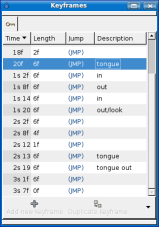
These will show up in the Timeline dialog.
To jump to a specific keyframe, double click on the (JMP) column.
The add keyframe button adds a new keyframe to the current frame - a frame
where there is no keyframe set already - and the delete keyframe removes a
keyframe. The duplicate keyframe (accessed with the down arrow in the
keyframes dialog) copies the keyframe to the current frame.

